Why Lightweight Task Managers Fail Seniors
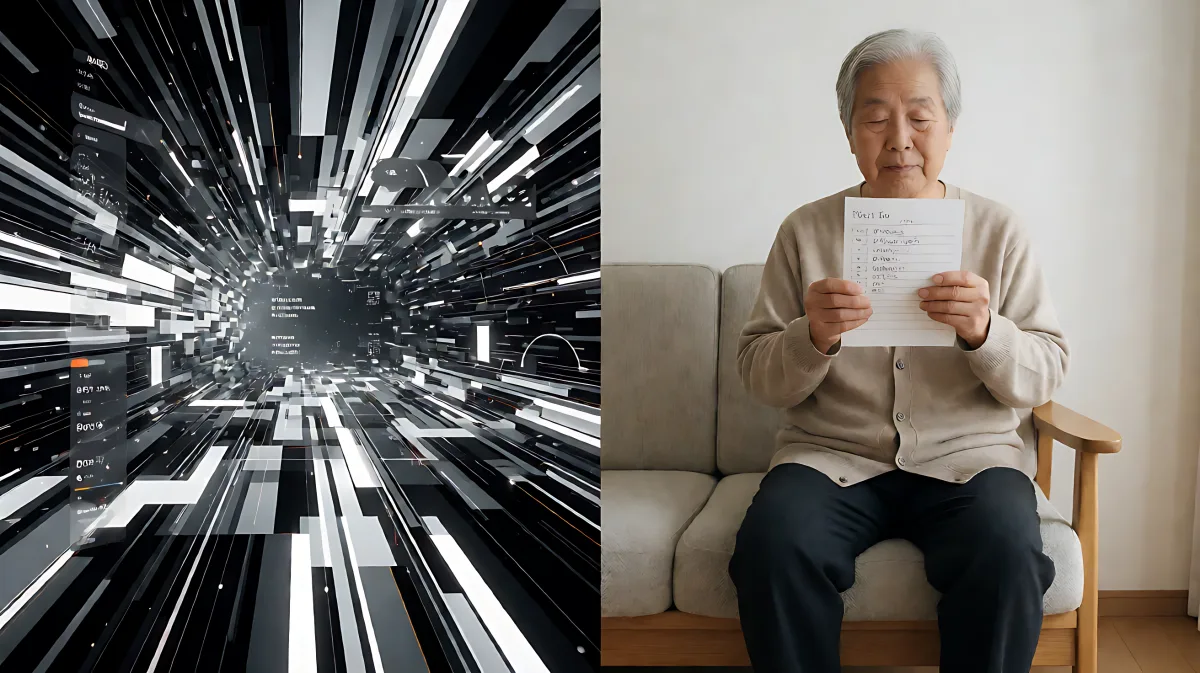
While tech experts praise lightweight apps, seniors often find them unusable. This article explains why complex features and minimal design create barriers for older users.
Lightweight task manager apps are often dismissed as bloated Windows tools, yet senior users find them just as confusing. While minimal resource usage is celebrated, interfaces packed with jargon, hidden menus, and aggressive automation frustrate older adults who prioritize clarity over speed.
Why do seniors struggle with minimal app designs?
Modern software design prioritizes developer efficiency, often stripping away the hand-holding features that older users rely on. Many seniors assume that a simple interface means fewer buttons and clearer text. In fact, a “clean” interface often hides essential functions behind hover menus or keyboard shortcuts that are difficult to discover and recall. When a task manager removes visible labels to save screen space, it inadvertently increases cognitive load. Older users, who may not have intuitive software instincts, require explicit labels and obvious feedback loops to navigate workflows.
How does feature overload affect usability?
Experts recommend apps that use under 200 MB of RAM for efficiency, but this technical metric tells us nothing about user experience. As of 2026, tools like Todoist offer natural language entry, which is excellent for developers but baffling for someone typing slowly. If a senior user types “buy milk” without a specific date, they must learn complex parsing rules or risk the task being filed incorrectly. This lack of forgiveness turns a tool intended to help into one that hinders, pushing users back to physical notebooks.
What are the specific barriers in common apps?
Microsoft To Do is frequently cited as the seamless option for Windows, yet it relies on a “My Day” smart planner. This automated feature assumes the user will curate their tasks manually, ignoring the fact that many seniors simply want a static, visible checklist. When the app automatically shuffles tasks between today and tomorrow, it creates a sense of loss of control. Additionally, the free tier for many competitors, like TickTick, is limited to a small number of smart lists, which restricts users who organize tasks by life domain rather than project.
Which features actually help older adults?
According to user experience studies, the most impactful features for seniors are high-contrast color modes, text scaling options, and persistent visual labels. None of the top-rated lightweight apps in 2026 offer a dedicated “high simplicity” mode that locks in large fonts and hides all advanced settings. This oversight suggests that the industry is designing for the median user, not the one who needs the most support. A tool that stays under 50 MB of RAM is not necessarily usable if it lacks a clear “undo” button visible on the main screen.
How can you choose the right tool for an older relative?
Selecting the right application requires looking past marketing claims of “lightweight” and focusing on the actual user interface. You should verify if the app allows you to create custom, permanent lists with manual ordering, rather than forcing the user into automated categories. Ensure that the notification system is opt-in, not opt-out, so that alerts do not startle or confuse. Furthermore, check for a reliable offline mode. If the internet connection drops, a static app must not lock out the user’s tasks or crash. Finally, verify that the pricing model is truly free for personal use; hidden paywalls for essential features like reminders are a common source of frustration and abandonment.
What is the alternative to digital task managers?
For many seniors, the most reliable system remains paper. While digital tools offer sync across devices, the immediate tactile feedback of a pen on paper remains unmatched for memory retention. Digital apps can coexist, but they should be introduced gradually. Start with one specific category, such as medications or grocery lists, and disable all other features. If the digital tool feels like a puzzle, revert to paper and do not force the technology. The goal is support, not digital surveillance.
How can we support our parents through this?
Instead of installing apps for them, sit with them and watch them navigate the system. You will quickly see where they hesitate. If they cannot find the trash icon, do not assume it is user error; it is a design failure. Use a physical sticky note on the screen to mark the location of key buttons if the digital software lacks clarity. This hybrid approach respects their autonomy while providing the visual scaffolding that modern, minimal software fails to provide.
Frequently Asked Questions
Is Microsoft To Do too difficult for seniors?
It depends on the user’s comfort level. While it is free and native to Windows, the “My Day” feature can be confusing. Seniors who want a static list may find the automatic sorting frustrating. It is best for those who are already comfortable with basic digital navigation.
Which app has the lowest learning curve?
Any.do is often cited for its simplicity, but even it includes “smart” suggestions. For an absolute beginner, a simple, static web-based list maker with large buttons and no automatic features is usually the easiest, even if it lacks advanced organization.
Do lightweight apps really save battery on desktops?
On a desktop PC, battery life is rarely a concern. The “lightweight” tag refers to memory usage. While this keeps the system snappy, it does not automatically make the software easier to use. In fact, lower memory usage sometimes comes at the cost of running complex local processing, which can impact consistency.
Can I use these apps without an internet connection?
Most modern task managers rely on the cloud for sync. If a senior user lives in an area with poor internet, or if the connection fails, the app may become unusable or sync incorrectly. Look for apps that explicitly state that offline use is a core feature, not just a backup mode.
Is it better to buy a dedicated tablet instead?
A dedicated, older-generation tablet with large physical buttons and a simplified operating system might be more intuitive than trying to reconfigure a desktop software to be accessible. It separates work from personal life and reduces the complexity of navigating a full Windows environment.