Senior Tech Guide: Screen Readers and Magnification Setup
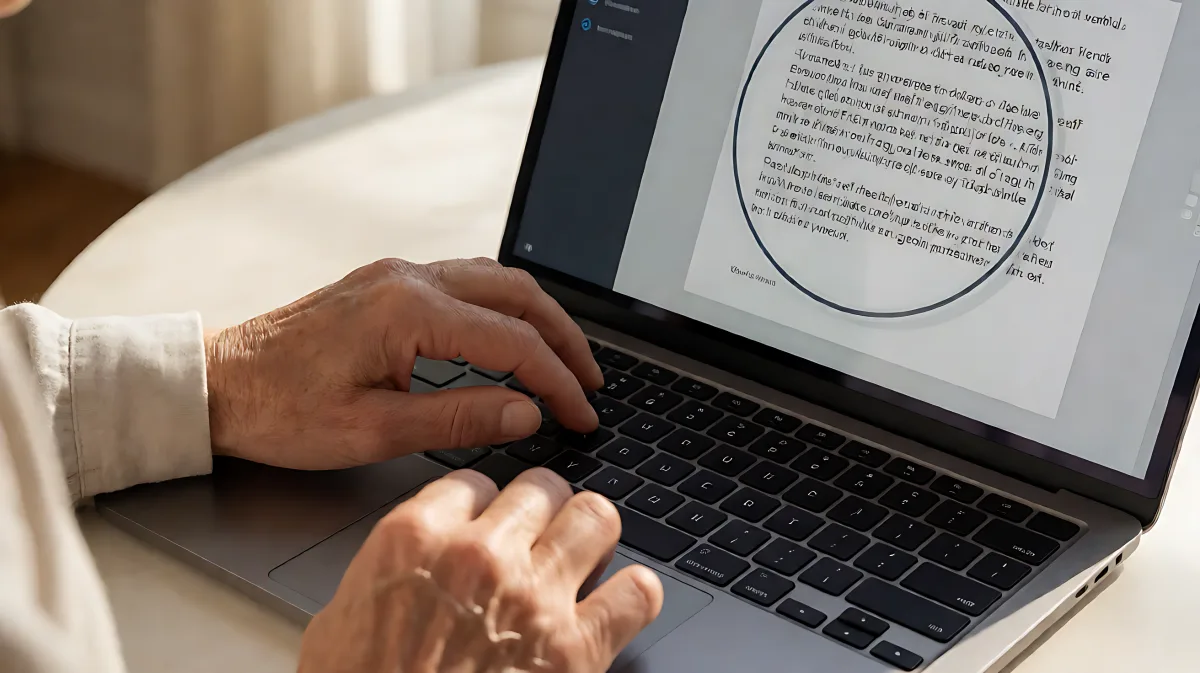
Struggling to see the screen? This guide explains how to activate built-in screen readers and magnification tools on Windows, Mac, iOS, and Android. We provide specific shortcuts and a checklist to make digital devices usable for seniors with low vision.
Modern operating systems include powerful screen readers and magnification tools that are free and built-in. To set them up, access the Accessibility menu on your Windows, Mac, iOS, or Android device. Enable Magnifier or Zoom for visual expansion and turn on Narrator, VoiceOver, or TalkBack to have the screen read aloud. These features allow seniors with low vision to browse, communicate, and manage tasks independently without needing special hardware.
Why Built-In Accessibility Features Matter for Seniors
Many families assume that seniors with low vision need expensive specialized hardware or complex software to use digital devices. In fact, most modern devices from 2026 onwards ship with robust, free accessibility tools that are superior to many older third-party alternatives. The U.S. Department of Health and Human Services notes that improving digital accessibility is a top priority for public health initiatives, emphasizing that simple settings adjustments can significantly reduce eye strain and cognitive load.
According to data from the National Eye Institute, nearly 35 million Americans have low vision, a figure expected to rise with the aging population. For these individuals, the ability to read emails, video-call with grandchildren, or manage banking is no longer a luxury but a vital tool for independence. By understanding how to activate the built-in Magnifier and Screen Reader functions, caregivers and seniors can unlock the full potential of their current devices immediately.
How to Enable Screen Magnification on Windows
Windows 11 and later versions integrate accessibility deeply into the system settings. The most effective tool is the built-in Magnifier, which enlarges the area of the screen under the cursor. To start using it quickly, users can press the Windows key and the Plus sign (+) on the keyboard simultaneously. This instant activation allows for on-the-fly zooming during tasks.
For permanent adjustments, navigate to Settings, then System, and finally Accessibility. From there, enable the Magnifier and choose between the Full screen or Lens modes. Full screen zooms the entire display, while Lens creates a movable window that magnifies the specific area underneath the mouse pointer. Additionally, users should increase the Text Size slider to make fonts larger across the operating system, ensuring that menus and icons are easier to see without constantly zooming.
What are the best keyboard shortcuts for Magnification?
While the Windows key plus Plus sign activates the tool, users can adjust the zoom level quickly by pressing the Windows key and the Equal sign (=) to zoom out, or the Windows key and Plus sign (+) to zoom in. To exit Magnifier mode, press the Windows key and Esc. These shortcuts reduce the need for mouse navigation, which can be difficult for users with tremors or visual impairments.
How to Set Up Screen Readers on Different Devices
Screen readers speak the text on the screen, describing buttons and images to users who cannot see them. The specific tool depends on the operating system, but all are accessible through the same Accessibility menus.
- Windows Narrator: Press the Windows key, Control key, and Enter key simultaneously. Narrator reads out everything on the screen, including new notifications and mouse hover effects. Users can change the voice speed and language in the Narrator settings panel.
- macOS VoiceOver: Press the Option key and F5 to toggle VoiceOver on or off. To adjust settings, open System Settings, select Accessibility, and enable VoiceOver. Users can then customize the speaking rate and pitch to match their hearing preferences.
- iPhone VoiceOver: In the iOS Settings app, go to Accessibility and enable VoiceOver. The primary interaction is swiping with one, two, or three fingers to move focus, double-tapping to select, and double-tapping with two fingers to open items. It is crucial to practice these gestures with a patient guide.
- Android TalkBack: In Android Settings, select Accessibility and enable TalkBack. A swipe to the right moves focus to the next item on the screen, while a double-tap with two fingers activates the selected item. This system is standard across most major smartphone manufacturers.
It is important to note that screen readers require a short learning curve. Users must stop trying to "see" the screen and instead listen to the auditory cues to understand where their cursor or finger is located. Carers should sit with the user for at least 30 minutes to practice basic navigation before leaving the device unsupervised.
How to Customize High Contrast and Display Settings
Magnification and screen readers are most effective when combined with visual adjustments. High Contrast Mode changes the color scheme to black, white, and bright yellow or cyan, making text stand out clearly against backgrounds. This is particularly helpful for users with cataracts or glaucoma who struggle with low-contrast displays.
On Windows, find this under Settings, Accessibility, and Contrast Themes. On Mac, it is located under Accessibility, Display, and Color Filters. Many seniors also benefit from increasing the overall screen brightness and turning off auto-brightness, which can cause distracting shifts in light levels during long reading sessions. Additionally, enabling Dark Mode can reduce eye strain for users in dimly lit environments, as bright white screens can cause halos for those with certain eye conditions.
What is the recommended font size for low vision users?
While preferences vary, a minimum font size of 18 to 24 points is generally recommended for comfortable reading on desktops. On mobile devices, using the "Largest" text size setting often provides the best readability without causing the layout to break. Users should test different sizes in their favorite apps, as some mobile interfaces do not scale text as uniformly as web browsers.
Step-by-Step Checklist for Setting Up Your Device
Follow this actionable list to configure your device for maximum accessibility. Check off each item to ensure your setup is complete and secure.
- Update Software: Ensure your Windows, macOS, iOS, or Android is updated to the latest version in 2026 to access the most recent accessibility improvements.
- Enable Magnifier: Turn on the built-in magnifier tool and choose Full Screen or Lens mode based on preference.
- Activate Screen Reader: Enable Narrator, VoiceOver, or TalkBack and set the speaking speed to a comfortable level.
- Adjust Text Size: Increase the system-wide text size to at least 125% or the "Largest" option on mobile devices.
- Apply High Contrast: Turn on High Contrast or Dark Mode to improve text visibility.
- Test Voice Input: Enable dictation features (Windows key + H on Windows, long-press Space on Mac) to allow typing without using the keyboard.
- Organize Desktop: Create large shortcut icons for frequently used apps to simplify navigation.
Common Mistakes to Avoid When Configuring Settings
A frequent error is enabling too many features at once. Many users try to turn on magnification, screen readers, and high contrast simultaneously, which can create a confusing sensory overload. It is better to master one tool, such as magnification, before adding a screen reader. Another common mistake is neglecting to save custom settings. On Windows, users can create a specific Magnifier profile, but these settings can reset if the user selects the wrong profile. Always verify that the settings persist after a reboot.
Is it safe to use these features without assistance?
Yes, but supervision is recommended during the first week. The cognitive load of listening to a screen reader while navigating a graphical interface is significant. Having a caregiver observe the process and provide feedback helps the senior user build muscle memory for gestures and keyboard shortcuts. Once the user feels confident, the support can be phased out gradually.
Frequently Asked Questions
Do I need a special computer for these features?
No. All standard laptops and desktops running Windows 11, macOS, or major Linux distributions include these tools for free. Mobile phones running iOS or Android also have these features built into the operating system. No additional hardware purchase is required.
What is the difference between a screen reader and magnification?
Magnification makes visual elements larger so they can be seen by eyes with reduced acuity. A screen reader uses speech synthesis to describe visual elements aloud, allowing a user to operate the device without looking at the screen at all. They are often used together for different tasks.
How can I improve the clarity of the screen reader voice?
Connect a Bluetooth hearing aid or headphones to the device. This reduces background noise and helps the user distinguish the computer's voice from other sounds in the environment. Most modern operating systems allow you to select specific output devices for accessibility audio.
Are there apps that help with reading physical documents?
Yes. Many phones include a built-in camera tool that can scan and read text from physical mail or labels. Third-party apps like Be My Eyes also offer volunteer assistance, but for most day-to-day needs, the built-in camera and OCR (Optical Character Recognition) tools in 2026 are highly effective and private.