Simple Apps for Seniors: Photo & Contact Managers
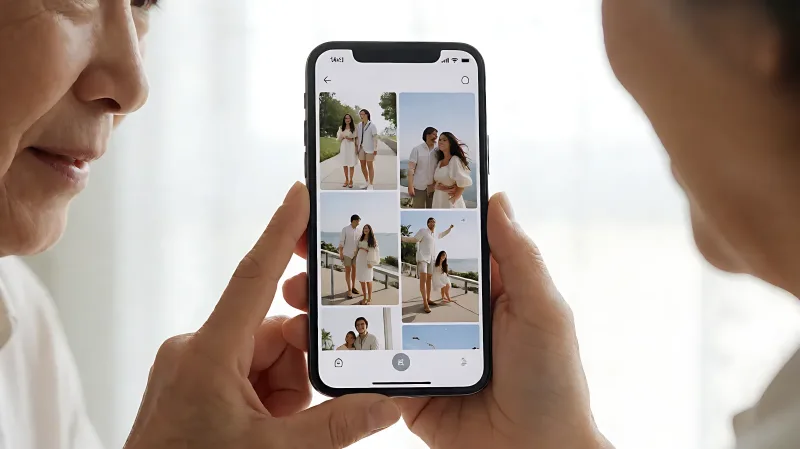
Navigating modern technology can be overwhelming for older adults. We review the best simple apps for organizing photos and managing contacts, featuring large text and intuitive interfaces.
For many older adults, smartphones feel like complicated puzzle boxes. Fortunately, specific software designs prioritize simplicity, large text, and intuitive layout. These apps help seniors manage two critical daily tasks: keeping family memories organized and maintaining contact lists without frustration. Here, we outline the best accessible tools that bridge the digital divide.
For more information, see NIA technology tips for older adults from the National Institute on Aging.
Why large text and simplicity matter for senior users?
Vision changes with age. The National Eye Institute notes that presbyopia, or the loss of near focusing ability, affects nearly everyone by age 40. By age 65, over 80% of older adults have some form of age-related eye disease. This makes standard 12-point fonts on a phone screen difficult to read. Apps that allow users to zoom in on photos and display contact names in bold, 18-point or larger fonts reduce eye strain and cognitive load. Simplicity is not just a preference; it is an accessibility requirement. Complex menus with many icons confuse users who did not grow up with touchscreens. Best practices suggest using apps with no more than three primary buttons on the main screen.
What is the best photo organizer app for beginners?
The built-in photo galleries on modern iPhones and Android devices are often the most accessible starting point. Apple’s Photos app automatically organizes images by date and location. It requires no extra download and works offline. For a dedicated third-party option, ACDSee is a veteran in the space, known for its clear interface and robust cataloging features. It allows users to tag photos with simple keywords like "Grandkids" or "Recent Vacation." A key feature for seniors is the "Smart Tags" function, which uses AI to identify people and objects, ensuring photos are found even if the user forgot to name the file. Ensure the app supports high-resolution thumbnails so details are visible without excessive zooming.
How can seniors manage contacts more easily?
Contact lists are often cluttered with duplicate entries or outdated numbers. The native Contacts app on most phones allows users to merge duplicates with a single tap. For those who prefer a cleaner view, Simple Contacts is an open-source app popular in the Android community. It displays names in large, readable fonts and removes advertising. It also integrates with social media profiles, so tapping a name shows not just the phone number, but also the person’s photo and email. This reduces the need to search through multiple apps. Always back up your contact list to your email or cloud storage weekly to prevent data loss if the device is damaged.
Which safety and health apps are essential?
Beyond organization, technology can aid in health monitoring. The Centers for Disease Control and Prevention recommends that older adults track their vital signs. Apps like iHealth or MySugr allow users to log blood pressure and glucose levels with large, clear graphs. These apps use color-coding to indicate safe versus dangerous levels, removing the need for complex data analysis. For emergency situations, the Apple Watch’s fall detection feature is a lifesaver. It can automatically call 911 if a hard fall is detected and the user does not respond within a minute. Setting this up requires only a few simple taps in the Health app on your iPhone.
Table: Top recommended apps for older adults
| App Name | Primary Use | Key Feature for Seniors |
|---|---|---|
| Apple Photos | Photo Management | Auto-organization by timeline |
| Simple Contacts | Directory | Large font, no ads |
| iHealth | Health Logging | Color-coded data graphs |
| Medisafe | Medication Reminder | Loud, clear alarms |
| Zoom | Video Calls | Easy "Join" button |
Frequently asked questions
Is it safe to let grandparents use social media apps?
Yes, but with supervision. Facebook and Instagram have "Family" features that allow you to see who your relative is connected to. Ensure they have strong passwords and that two-factor authentication is turned on. Teach them to recognize that photos of products on social media are often advertisements, not organic content.
Can I control my parent’s phone remotely?
Not fully, but you can manage their app permissions. On iPhones, you can limit screen time for specific apps under the Screen Time section. On Androids, you can disable the app store to prevent accidental downloads of games or unnecessary software. You cannot remotely view their screen unless a screen-sharing app like Join.me is explicitly installed and running.
What should I do if I forget my passcode?
Call the manufacturer’s support line immediately. For iPhones, you can use the "Find My" feature from a computer to erase the device and restore it to factory settings, which bypasses the passcode. This will delete all data, so having a cloud backup is critical. Never attempt to bypass it with third-party software, as this can be illegal and often scammers.
Do these apps work on tablets?
Most apps listed are mobile-first, but large screens on tablets make them even more accessible. The text is naturally larger, and the interface is easier to navigate. The built-in features work the same way, whether you are using a 6-inch phone or a 10-inch iPad. Tablets are often better for photo review because you can see more thumbnails at once.