How to Set Up Tablet Video Calls for Grandparents
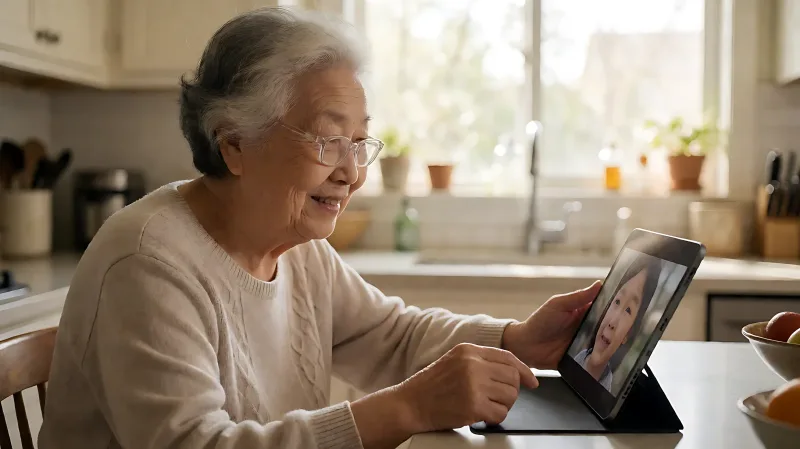
Struggling to help older family members join video calls? This guide offers practical steps to set up tablets simply, prioritize online privacy, and bridge the generational tech gap.
Video calls on tablets let older adults connect with grandchildren using large, clear screens. To simplify the process, use dedicated senior-friendly apps or simplified modes on standard devices like iPads or Android tablets. Prioritize security by disabling unnecessary permissions, using private Wi-Fi networks, and enabling auto-answer features where available. This guide provides practical steps to reduce frustration and enhance digital literacy for aging users.
For more information, see NIA technology guidance for older adults from the National Institute on Aging.
Why Use a Tablet for Senior Video Calls?
Tablets are often the most intuitive device for older adults to interact with family members remotely. The larger screen size compared to smartphones makes it easier to see facial expressions and identify callers. According to the National Institute on Aging, maintaining social engagement is a key factor in cognitive health for seniors. A tablet serves as a dedicated communication hub that can be kept on a stand, allowing the user to see both the caller and their surroundings, such as a grandchild's toy or background.
While complex setups can overwhelm users, streamlined approaches focus on reducing the number of taps required to start a call. The goal is to make the device feel less like a computer and more like a simple extension of the television or telephone.
Which Devices Are Best for Grandparents?
When selecting hardware, prioritize large screens and robust customer support. The iPad remains a top choice due to its ecosystem integration and user-friendly interface. Android tablets are also viable, though the interface can vary by manufacturer. Specialized devices exist to simplify the experience even further.
| Device Type | Best For | Key Feature |
|---|---|---|
| iPad / Android Tablet | Active seniors who use email or social media | Large screen, familiar interface |
| Smart TV Hub | Seniors who prefer staying on the couch | Auto-answer, hands-free interaction |
| Dedicated Senior Tablet | Users with low tech confidence | Simplified interface, limited apps |
For households where the older adult already has a smart TV, adding a streaming device that supports video calls can be an effective alternative. These hubs often feature auto-answer functionality, meaning the TV turns on automatically when a family member calls. This reduces the need for the senior to navigate menus or press buttons during a call.
Step-by-Step Setup Guide for Tablets
Setting up a tablet for video calls requires initial configuration to ensure ease of use. The following steps outline a standard setup for an iPad or Android tablet, focusing on security and simplicity.
1. Create a Dedicated Account
Set up a separate user profile or device specifically for calls. This prevents accidental deletions or downloads. Use a simple, memorable password and store it in a secure location.
2. Configure Wi-Fi and Permissions
Connect to a secure home network. In the settings menu, review app permissions. Most video calling apps require camera and microphone access. Disable location services and contact access unless specifically needed for a feature you plan to use. This step is crucial for protecting personal data.
3. Choose the Right App
For family-only calls, specialized apps that allow a limited number of contacts are often less confusing than open platforms like Zoom or WhatsApp. These senior-focused apps typically feature a one-button interface for joining calls. If using standard apps, pin them to the home screen and remove distractions like the web browser or games from that screen.
4. Test the Audio and Video
Place the tablet on a stable stand at eye level. Test the microphone to ensure the sound is clear. Adjust the brightness to a comfortable level for eyes that may be sensitive to glare. Verify that the camera angle frames the face properly.
5. Teach the "One-Button" Method
Demonstrate how to start a call. Ideally, this should involve tapping a single icon on the home screen. Practice a few times until the user is comfortable. Some advanced setups allow for scheduling automatic check-ins, but manual control is preferred for independence.
How to Protect Privacy and Security?
Digital safety is a primary concern when connecting seniors to the internet. Malicious actors can exploit poorly secured devices to access personal information or financial accounts. Implementing basic security protocols significantly mitigates these risks.
Update Firmware Regularly
Enable automatic updates for the operating system and the video calling application. Security patches are released frequently to fix vulnerabilities. The Consumer Product Safety Commission often issues guidelines on connected home devices, emphasizing the importance of keeping firmware current to prevent unauthorized access.
Use Strong, Unique Passwords
Never reuse passwords from email or banking. Use a password manager if the senior is tech-savvy enough, or write the credentials on a card stored in a secure place if they prefer physical notes. Ensure the Wi-Fi network uses WPA3 encryption if supported by the router.
Review App Data Sharing
Check the privacy settings within the video calling app. Disable options like "See My Friends" or social media integration if the user only intends to call specific family members. This reduces the attack surface for potential data breaches.
Establish a "Call Screening" Routine
Teach the senior to wait for a call to ring before answering. Unknown numbers should be ignored. This simple habit prevents phishing attempts and unwanted solicitations that may target elderly users.
What If They Still Struggle with the Tech?
If your family member remains hesitant after basic setup, consider professional assistance or simplified hardware. Community programs and non-profit organizations often offer digital literacy workshops for older adults. Local libraries and senior centers frequently host classes on tablet usage and online safety.
For those who find even simplified interfaces confusing, dedicated "one-button" devices are available. These products are designed specifically for caregiving scenarios, offering auto-answer capabilities and limited functionality to prevent accidental errors. While these can be more expensive upfront, they eliminate the complexity of a general-purpose tablet.
Patience is key. Approach the learning process with encouragement rather than frustration. Celebrate small victories, such as successfully sending a photo or joining a group call. Consistent, low-pressure practice builds confidence and long-term independence.
Frequently Asked Questions
Do grandparents need an internet subscription for video calls?
Yes, a stable internet connection is required. Wi-Fi is the most common method, but some devices support cellular data. Ensure the bandwidth is sufficient for smooth video streaming, generally at least 5 Mbps for standard quality.
Can I control the tablet from a distance if they are in a care facility?
Some senior-specific apps and devices allow for remote management. This includes viewing call logs and sending messages. However, direct control of the user's device is usually restricted for privacy and autonomy reasons. Focus on ensuring the auto-answer feature is enabled so they don't miss important calls.
Is it safe to use free video calling apps for seniors?
Many free apps are safe, but they may include ads or share data with third parties. For maximum privacy, paid family-oriented services or dedicated senior hardware are recommended. These options often offer more robust encryption and fewer data harvesting risks.
What should I do if the camera or microphone stops working?
First, check the physical permissions in the device settings to ensure the app has access to the camera and microphone. Restart the application. If the issue persists, reboot the tablet. If the hardware is damaged, contact the device manufacturer for warranty support.