Screen Magnification Settings for Low Vision Users
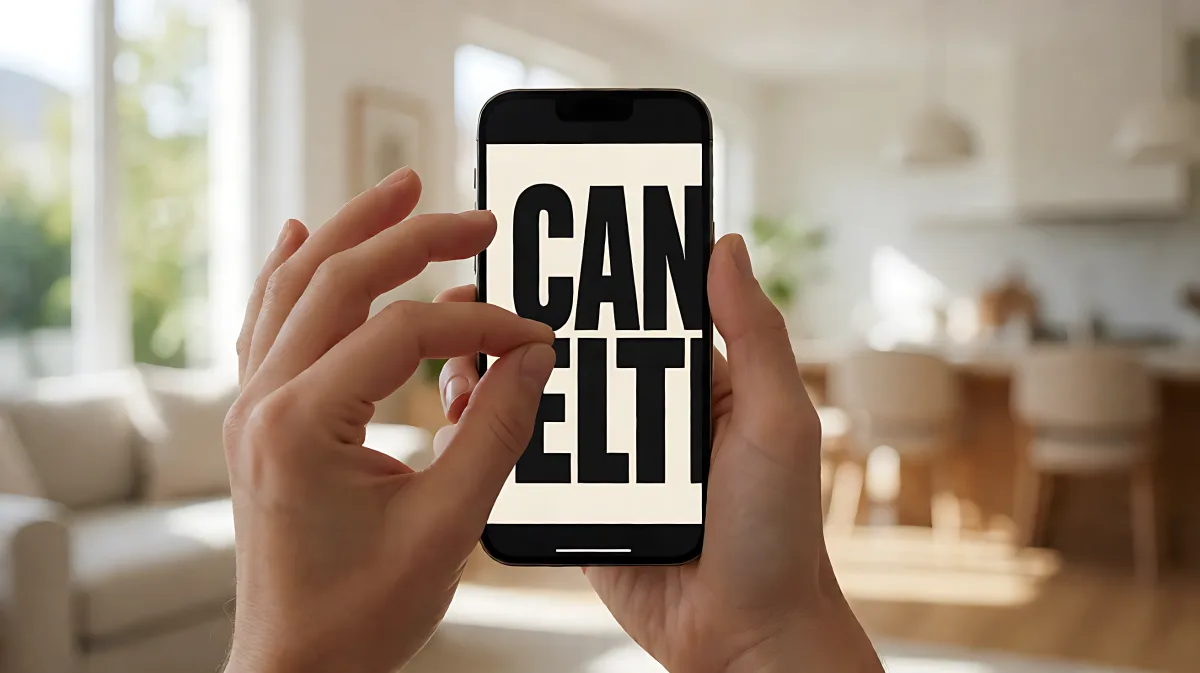
Discover how to optimize your smartphone and tablet for low vision. We break down the specific settings for iOS and Android that allow you to enlarge text, improve contrast, and use the camera as a digital magnifier.
If you use a smartphone or tablet, you can activate built-in screen magnification instantly through specific multi-finger gestures. On iOS devices, use three fingers to zoom in and out, while Android users can utilize the accessibility button or specific swipe gestures to enlarge content up to 500 percent, ensuring clearer visibility for low vision needs.
How do I adjust screen magnification on my device?
Every major operating system now treats visual accessibility as a core feature, not an afterthought. For users in the US and UK, the most common platforms are Apple’s iOS and Google’s Android. Understanding how these systems handle magnification is the first step to regaining independence in your digital life. In 2026, both systems offer more granular controls than ever before, allowing you to fine-tune how large and readable the on-screen content appears.
What are the specific steps for Apple iOS devices?
Apple has integrated deep accessibility features into the iPhone and iPad ecosystem. To start the magnification process, navigate to Settings and select the Accessibility menu. From there, look for the Zoom option within the Vision section. When you enable Zoom, you unlock the ability to magnify the entire screen or use a movable window to focus on specific areas. Once activated, the gesture mapping is specific: a three-finger double tap turns Zoom on and off. If you hold your three fingers on the screen and slide upward, you increase the magnification, and sliding downward decreases it. This allows for dynamic, on-the-fly adjustments without needing to return to the settings menu every time.
How does Android screen magnification work?
Android devices, whether made by Samsung, Pixel, or other manufacturers, handle magnification slightly differently. You will typically find these options under Settings and then Accessibility. Look for features labeled Magnification or Display Size and Text. Android offers an onscreen accessibility button that can be configured to act as a zoom toggle. Additionally, you can set up a three-finger tap or a swipe gesture to activate partial screen magnification. For users who find small icons difficult to locate, the Accessibility button provides a reliable, physical touchpoint to manage your view of the screen.
Why is text size adjustment more effective than just zooming?
Many users assume that zooming in is the only way to make content readable, but in fact, adjusting the base text size is often more sustainable for long-term use. When you increase the text size, the layout of the app adapts, moving buttons and menus to accommodate the larger font. Zooming, however, keeps the layout static and simply enlarges it. This can result in content spilling off the screen or becoming difficult to scroll through. The best approach is a hybrid one: increase your system-wide text size to a comfortable reading level first. Then, use zooming selectively for specific tasks, such as reading a fine-print label or a detailed map. According to the American Foundation for the Blind, this layered approach helps prevent visual fatigue during extended smartphone sessions.
Can I use my phone camera as a handheld magnifier?
Yes, your device's camera is a powerful tool for low vision users. Both iOS and Android include dedicated magnifier applications or features that use the camera to enlarge real-world objects. This is particularly useful for reading physical items like medication labels, price tags, or newspaper headlines. On iOS, the dedicated Magnifier app allows you to adjust brightness, contrast, and color filters specifically for the camera view. On Android, features like Lookout and built-in camera tools can provide spoken descriptions and visual enhancements. This technology bridges the gap between digital access and physical world access, ensuring that you are not limited to your phone's own display.
What are the essential display settings for better contrast?
Magnification helps you see things larger, but contrast helps you see them clearly. If you have low vision, you may struggle with light gray text on white backgrounds. Both operating systems offer powerful color correction tools that are essential for readability. You should explore these settings to find the combination that suits your visual field.
- Invert Colors: This swaps black and white, creating a high-contrast, light-on-dark display that is often easier to read.
- Color Filters: These allow you to simulate specific color blindness or create high-contrast monochrome views.
- Reduce Transparency: This makes system elements more solid and defined, reducing the 'ghosting' effect that can blur text.
- Dark Mode: Reduces overall glare, which is beneficial in bright environments or for those with light sensitivity.
How do I set up a fast shortcut to these settings?
Buried menus are the enemy of accessibility. You need a way to toggle your preferred settings in seconds. On an iPhone, you can set up an Accessibility Shortcut in the settings menu. By assigning a triple-click to the Side Button or Home Button, you can instantly cycle through your customized states, such as turning on Zoom, Bold Text, and Reduce White Point all at once. On Android, you can assign these actions to the onscreen accessibility button or a swipe gesture. Practicing these shortcuts ensures that you can adjust your visual environment without losing your place in an app or document.
Common Mistakes and Misconceptions
Many families and users assume that turning on a screen reader like VoiceOver or TalkBack is required for low vision. But in fact, most people with low vision who still have some residual sight rely on visual access tools—like zoom and contrast—rather than full auditory access. Enabling a full screen reader changes every gesture on the device and requires a steep learning curve of new touch combinations. If you can still see, you should focus on maximizing your visual capabilities first. Only consider a screen reader if you lose the ability to locate icons or text on the screen visually. Additionally, a common mistake is using the pinch-to-zoom gesture for photos or maps without enabling the Accessibility Zoom. The native pinch-to-zoom has limits and does not offer the 500 percent magnification that the dedicated Accessibility Zoom feature provides.
Step-by-Step Checklist: Optimizing Your Display
Follow this actionable checklist to immediately improve the usability of your smartphone or tablet for low vision.
- 1. Increase Base Text Size: Go to Settings > Accessibility > Display Size and Text. Increase the size slider until text is comfortable. Check your main apps to ensure they do not break.
- 2. Enable Bold Text: Toggle this option to add weight to the font, making it more distinct.
- 3. Set Up a Shortcut: Assign your preferred visual settings (Bold, Reduce Transparency, etc.) to a triple-click or accessibility button.
- 4. Test Your Camera Magnifier: Open the built-in magnifier app and test it on a physical object in your home to check focus and brightness levels.
- 5. Adjust Color Filters: Experiment with Invert Colors and Reduce White Point to find the highest contrast combination for your eyes.
Frequently Asked Questions
Does screen magnification work with all apps?
Most modern apps developed for iOS and Android respect system font sizes and zoom levels. However, some poorly designed apps or third-party web pages may not scale correctly, leading to text overflow or buttons that become unusable. If an app struggles with large text, the Magnifier feature or using the device's camera to zoom into the screen is a viable workaround.
Can I use these settings on a tablet as well as a phone?
Yes, the exact same accessibility settings apply to iPads and Android tablets. In fact, tablets are often better for low vision users because the larger screen provides more space for text and icons, reducing the need for excessive zooming and allowing for more comfortable two-handed interaction with the device.
Is there a battery cost to keeping magnification on?
There is a minimal impact on battery life. Screen magnification primarily affects the display driver and does not significantly increase power consumption compared to standard usage. However, if you use the camera as a magnifier for extended periods, you will see a faster battery drain because the camera module and image processor are working actively.
What if I cannot see the screen to find the settings menu?
If you have very limited vision, you can use the built-in voice assistant. On an iPhone, press the side button and say, 'Open Settings.' Then, you can ask, 'Enable Zoom.' On Android, press the accessibility button and say, 'Open Settings.' Voice assistants are a critical bridge for users who struggle to locate visual menus.