Smartphone Guide: Big Fonts and Easy Home Screens for Seniors
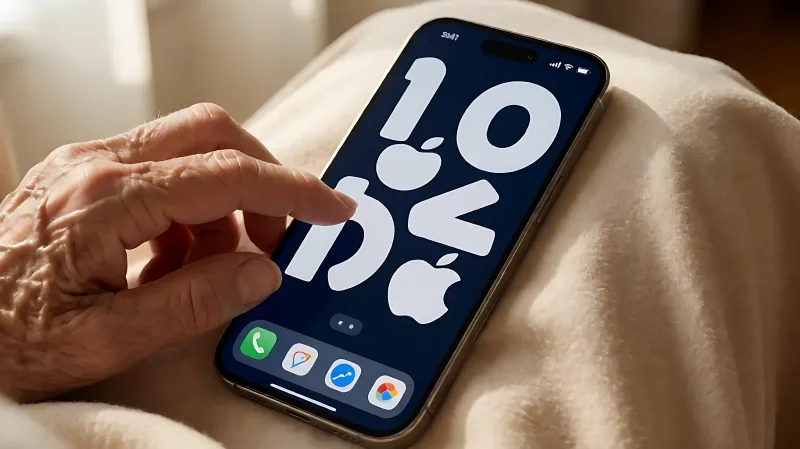
Struggling to read your phone? This guide shows you how to boost text size, clean up the home screen, and install accessible launchers on Android and iPhone.
To make a smartphone easier for an older relative, you should significantly increase the system text size, simplify the home screen by removing unused icons, and install large-button launcher apps. These three steps improve readability and reduce confusion, ensuring that essential functions like calling and messaging remain accessible without strain.
Why Is a Large Font Important for Older Adults?
As we age, our eyes require more contrast and larger visual elements to process information effectively. Standard smartphone fonts are often too small for many users over the age of 60, leading to squinting, headaches, and a reluctance to use the device. The Association for Research in Vision and Ophthalmology notes that presbyopia, or the natural loss of focusing ability, affects nearly everyone by their mid-sixties. By increasing the font size, you are not just making text bigger; you are removing a physical barrier to communication. This simple adjustment can transform a frustrating experience into a manageable one, encouraging your relative to stay connected with you and their community.
How Do I Increase Font Size on an Android Phone?
Android devices offer straightforward settings to adjust text scale without needing to install third-party apps. Most manufacturers, including Samsung, Google, and Motorola, place these controls in the same location. To do this on a standard Android phone:
- Open the Settings app.
- Tap on Display. This option may sometimes be labeled Display and Touch depending on the brand.
- Find and select Display size and text.
- Use the slider at the bottom of the screen to increase the text size. You can drag the slider to the right to make the text larger.
- Some phones also offer a Large or Largest option that adjusts both the text and the size of icons and buttons across the entire interface.
If your relative uses a Samsung Galaxy phone, you can also access the Easy Mode setting. This built-in feature, introduced by Samsung, significantly increases the size of all icons and text system-wide. To enable it, go to Settings, then Display, and toggle on Easy Mode. This is often the best quick-fix for users who find the default interface cluttered.
How Do I Increase Font Size on an iPhone?
Apple has made accessibility a core part of iOS for years. The process for making text larger is slightly different but equally effective. To adjust the font size on an iPhone:
- Open the Settings app.
- Scroll down to Display & Brightness.
- Tap on Text Size.
- Drag the slider to the right to increase the size. You will see a preview of the text changing in real-time.
- If you need even more size, tap the warning triangle that says Recommend Larger Text and drag the slider further to the right.
Apple also allows you to change the typeface. Within the same Display & Brightness menu, you can tap Display Zoom to make the entire interface elements larger, not just the text. This is useful if the user finds the small icons hard to tap accurately.
How Can You Simplify the Home Screen Interface?
A cluttered home screen is a common source of anxiety for less tech-savvy users. Too many icons and folders create cognitive load, making it hard to find the essential apps like Phone, Messages, and Camera. The goal is to create a "dashboard" with only the four or five most important functions.
On Android, you can install dedicated launcher apps that replace the default home screen with a cleaner, more accessible layout. Apps like Simple Launcher or Senior Home are designed specifically for this purpose. They feature large, distinct icons and a minimalistic design. For example, Simple Launcher puts the most frequently used apps in the center and hides the rest in a dedicated folder, reducing visual noise.
On iPhone, you cannot install a system-wide launcher that changes the entire interface look. However, you can manually organize the home screen. Remove all unused apps to the app library or off the phone entirely. Create a folder named "Essentials" that contains only the Phone, Messages, Camera, and Calendar apps. Keep this folder on the first screen so it is always visible.
What Are Quick Shortcuts and How Do They Help?
One of the most effective ways to help an older relative is to create direct shortcuts for their most important contacts. Instead of navigating through a list of hundreds of names, they can tap one large icon to call you or a specific family member.
On Android, you can create a widget that acts as a direct dialer. Long-press on an empty space on the home screen, tap Widgets, and look for the Contacts or Direct Dial widget. Select the contact you want, such as "Daughter," and place it on the home screen. When your relative taps that large icon, it immediately starts a call to that person, bypassing the need to search the phone book.
On iPhone, you can use the built-in Shortcuts app. Open Shortcuts, tap the plus sign to create a new shortcut, and choose the Phone action. Select the contact you want to call. Then, tap the arrow next to the shortcut name and choose Add to Home Screen. You can also change the icon and label to something clear, like "Call Mark". This places a large, custom icon on the home screen that executes the call instantly.
Should You Use a Different Phone for Seniors?
You do not need to buy a specialized "senior phone" with large buttons. In fact, many of these devices run stripped-down operating systems that lack the advanced accessibility features found in standard Android or iOS devices. A modern mainstream smartphone, even an older model, offers superior battery life, security updates, and app support. If your relative is struggling with a smartphone, the issue is likely setup, not hardware. Stick with a device they are familiar with or a standard Android/iPhone model that supports the font and launcher adjustments described above.
Frequently Asked Questions
Can I make the font too big?
Yes, it is possible to make the text so large that it cuts off important information, such as phone numbers or full names. It is best to find a balance where the text is easily readable but still allows enough content to fit on the screen. Most phones allow you to preview the text before confirming the size, so adjust the slider slowly.
Do these changes affect the phone's performance?
No, increasing font size and simplifying the home screen does not slow down the phone. In fact, a simplified home screen with fewer icons can load slightly faster because the system has less to render. However, installing heavy third-party launchers may use a small amount of battery, but for most modern smartphones, this is negligible.
What if my relative uses a tablet instead of a phone?
The settings are almost identical. On iPads, go to Settings, then Display & Brightness, and then Text Size. On Android tablets, go to Settings, then Display, and adjust the Font Size. The principles of simplifying the interface and creating shortcuts apply exactly the same way.
Are there apps that can read text aloud?
Yes. Both iOS and Android have built-in "Read Aloud" or "Screen Reader" features (VoiceOver on iPhone, TalkBack on Android). These features turn the phone into an audio device, reading out what is on the screen. This is an advanced step and should only be enabled if your relative is visually impaired or prefers audio interaction.