How to Organize Family Photos Without Losing Originals
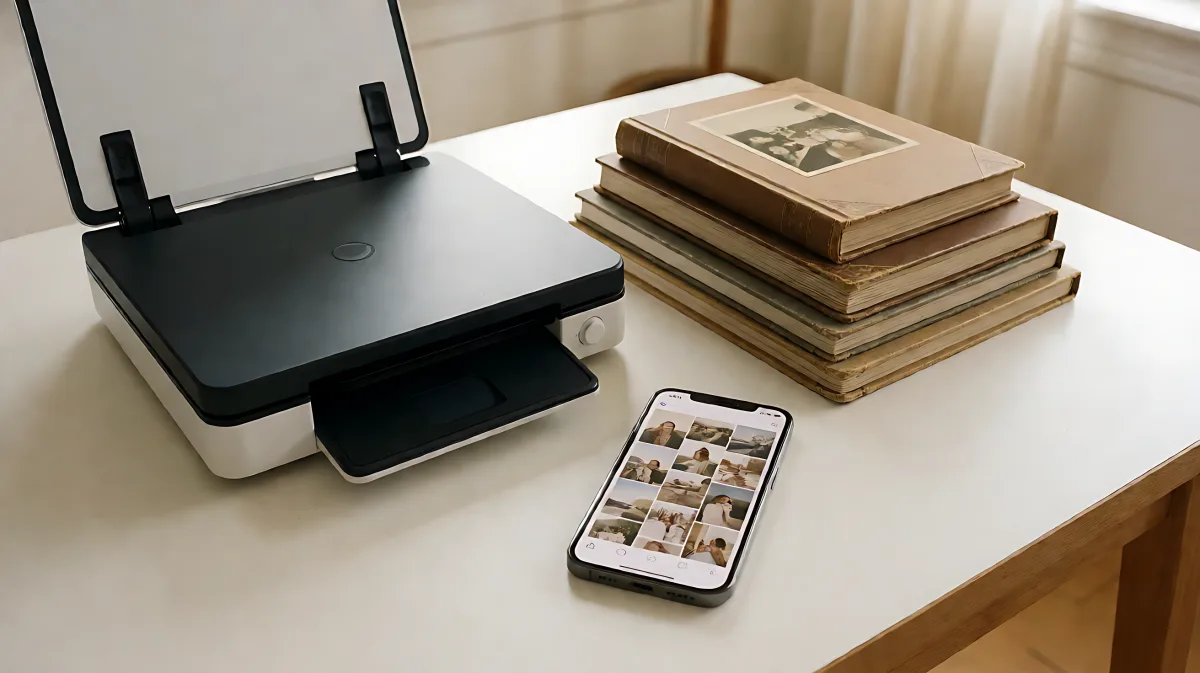
Your family photos are scattered across phones, clouds, and shoeboxes. This guide provides a realistic 2026 workflow to consolidate your media, digitize fragile prints, and implement a robust backup strategy to ensure irreplaceable memories survive device failures and cloud outages.
To organize family photos in the cloud without losing originals, consolidate all scattered media into a single master library, digitize physical prints at archival resolution, and implement the 3-2-1 backup rule. This approach prevents data loss from failed hard drives and expired cloud accounts while ensuring your family history remains searchable and secure.
Why Scattered Family Photos Are Disappearing
Many families assume that if a photo is on their phone, it is safe. In fact, the average family generates over 3,600 new images annually, creating a digital clutter that spans multiple devices and accounts. According to a major family photo survey, catching up with this backlog requires approximately 45 hours of manual work. This delay is dangerous because physical prints fade, hard drives have an average lifespan of only 3 to 5 years, and cloud services can shut down or be inaccessible due to forgotten passwords.
The risk is not just technical; it is cultural. When photos are scattered across a grandmother's old laptop, a teenager's social media cache, and a shared iCloud album, the context behind the images is lost. You might have the file, but you may lose the story: who is in the shot, where it was taken, and why it mattered.
How to Consolidate Your Digital Media
The first step is centralization. Before you can organize, you must gather. This process is less about software choice and more about establishing a single source of truth.
- Audit All Sources: List every location holding images. This includes current phones, retired devices in drawers, external USB drives, cloud accounts like Google Photos and iCloud, and social media archives.
- Create a Master Library: Choose one central repository. This could be a dedicated desktop folder, a cloud workspace, or a specific photo application. The goal is to have one authoritative library where all new photos land.
- Import, Don't Move: When transferring files from old devices or drives, copy them to a temporary "INBOX" folder rather than deleting the originals immediately. This preserves your safety net while you verify the import.
What Is the Best Way to Handle Duplicates?
Consolidation inevitably creates duplicates. A compressed social media version and a full-resolution camera file might depict the same moment. Use built-in duplicate detection tools in your photo app or specialized software like dupeGuru. Review these matches manually; often, the original camera file is superior for archival purposes, while the compressed version can be discarded.
How to Digitize Physical Photos Safely
Shoebox photos are fragile. Humidity and light degrade them over time. In 2026, technology offers three distinct paths for digitizing these heirlooms.
- Prepare the Workspace: Use a clean, flat table. Wear lint-free cotton gloves to avoid transferring oils to old prints. Use a blower to remove dust before scanning.
- Choose the Right Hardware: For bulk collections, a sheet-fed scanner like the Epson FastFoto can process 30 photos in under a minute. For delicate heirlooms, a flatbed scanner like the Epson Perfection V600 is preferred because it does not force the photo through rollers, which could tear it.
- Set Archival Standards: Scan at 600 DPI for the "archival standard." This resolution allows you to enlarge a 4x6 print significantly without losing clarity. Save files as TIFF for restoration work or high-quality JPEG for sharing.
Many families assume smartphone apps are sufficient for preserving heirloom photos. However, mobile apps often compress images to save space. For your most important "hero" photos, a dedicated scanner ensures you have enough data for future AI restoration and large-format printing.
How to Back Up Cloud Photos Correctly
One copy is zero copies. If your photos live in the cloud, you are at the mercy of a single service. To protect against service outages, storage limits, or accidental deletion, you must follow the 3-2-1 backup rule.
| Copy | Location | Purpose |
|---|---|---|
| 1 | External Hard Drive (At Home) | Primary backup for quick access. |
| 2 | Cloud Storage (e.g., Google One, iCloud) | Off-device redundancy and mobile access. |
| 3 | Off-Site Drive (At a Relative's House) | Protection against fire or theft at your home. |
Update the off-site drive quarterly. A backup you have not tested for a year is not a backup; it is a hope. Verify that you can restore files from each location at least once a year.
Why Should You Label While Scanning?
Context decays faster than files. While you are digitizing old prints, add metadata notes: who is in the photo, the approximate date, and the location. This "data entry" phase is the most critical step for future searchability. Without these labels, a photo of a house from decades ago is just an image of a house, not a record of where your family lived.
How to Keep Your Archive Organized Long-Term
Organization is not a one-time task; it is a habit. To prevent your new system from collapsing, integrate maintenance into your daily life.
- The 15-Minute Rule: After every family event, spend 15 minutes selecting the best shots and adding them to your master library.
- Monthly Culling: Once a month, delete obvious junk: blurry shots, failed screenshots, and duplicates. Studies suggest 20-30% of a typical photo library is deletable junk.
- Favorite Selection: Do not tag every photo. Mark the 5-10% of images that are truly worth finding again as favorites. This keeps your highlights surface-level and searchable.
Frequently Asked Questions
What is the best way to organize photos by event versus date?
Date-based organization happens automatically via file metadata. Event-based organization is what you actually search for later. Modern photo apps and AI tools can group by date, person, and location. Combine both: let the software handle the chronological sorting, and use manual tagging for specific events like "Christmas" or "Graduation" to make them instantly retrievable.
Can I restore blurry or damaged old photos?
Yes. In 2026, AI restoration tools can significantly improve image quality. Software can strip away film grain, correct color fading, and even reconstruct facial features in blurry portraits. For best results, scan the original print at high resolution (600 DPI) first, then use offline restoration tools to clean the image before upscaling it for large prints.
How many copies of my photos do I need?
You need a minimum of three copies. One on your primary device or computer, one on an external hard drive at home, and one in a separate location such as a cloud service or a drive kept at a trusted family member's house. This 3-2-1 strategy ensures that if one location is compromised by fire, theft, or service failure, the others remain intact.
Is it safe to use public cloud storage for family photos?
Public cloud services are generally secure, but they have privacy implications. Some services may use your images for AI training. If privacy is a priority, consider private, family-focused photo apps that offer invite-only access and no ad-supported data selling, or ensure you understand the privacy policies of your current cloud provider before uploading sensitive family media.