Fix Smart Speaker Wake Word Issues
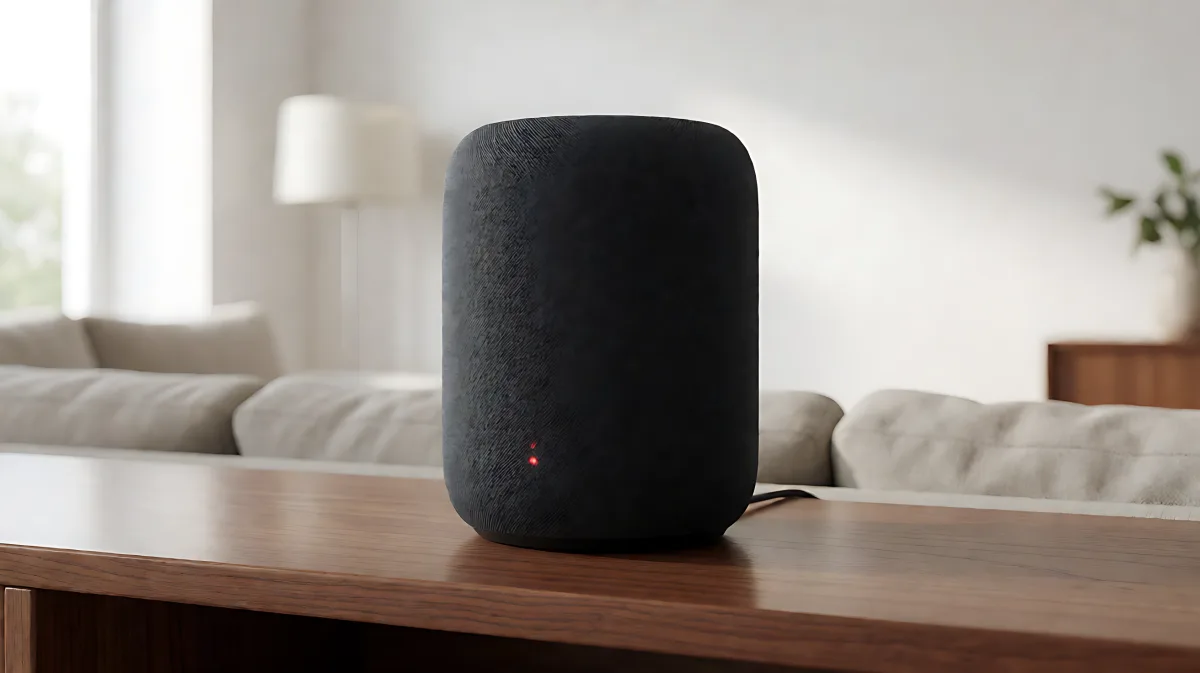
Struggling with a smart speaker that refuses to listen? This guide walks you through the most common causes of wake word failures, from simple mute button errors to complex Wi-Fi routing issues.
A smart speaker that ignores its wake word is usually caused by a muted microphone, disconnected Wi-Fi, or blocked app permissions, not hardware failure. To fix this, check the physical mute button first, then reboot the device for 30 seconds to clear temporary glitches. If the issue persists, verify your Wi-Fi connection and ensure the companion app has microphone access enabled. These steps resolve the majority of recognition failures quickly.
Why Does My Smart Speaker Stop Hearing the Wake Word?
When a device fails to respond, the break in communication usually happens at one of three points: the microphone input, the local processing chip, or the cloud connection. Unlike traditional electronics, these devices rely on a constant stream of data to the internet to process commands. If the Wi-Fi link drops, the speaker cannot send your voice to the server for analysis. Furthermore, on-device detectors can be overwhelmed by background noise or accidental mute switches, causing the hardware to effectively "go deaf" to your specific voice command.
How Do I Check the Mute Button and Microphone Status?
This is the most common oversight. Every major brand, including Amazon and Google, includes a physical microphone mute button to protect privacy. When engaged, the microphone physically disconnects from the audio processing system. Look for a red light or a red microphone icon on the device surface. On Echo devices, a solid red ring indicates the mic is off. Press the button once to toggle it back on. Wait five seconds for the system to reinitialize, then try your wake word again. Additionally, check the volume level. If the speaker volume is set to zero, you may not hear the confirmation sound even if the device is working correctly. Set the volume to at least 30 percent for reliable detection.
What Are the Critical Settings to Verify in the App?
Software settings can silently block wake word recognition without obvious visual cues. Many families assume the speaker is broken when, in fact, the issue is simply a disabled permission or a routing error. You must verify two specific settings in your companion app:
- Microphone Permissions: On your phone, go to settings and ensure the smart speaker app has permission to access the microphone. Without this, the app cannot communicate with the device's audio sensors.
- Audio Output Routing: If you recently connected a Bluetooth headset or car system, the speaker may be routing audio output to that external device. This can confuse the local processing. Switch the audio output destination back to the speaker itself within the app settings.
- Do-Not-Disturb Mode: This feature blocks all wake word detection to prevent interruptions. If active, the speaker will appear to be on but will ignore all voice commands. Disable this setting to restore functionality.
How Does Wi-Fi Connectivity Affect Voice Recognition?
A simple reboot fixes more than half of all smart speaker issues. These devices run on a full operating system that can suffer from memory leaks after running continuously for months. Unplug the speaker from the power outlet and wait 30 full seconds to allow capacitors to discharge. Plug it back in and wait two to three minutes for it to boot up and reconnect to your network. If the speaker shows as offline in the app, the problem is your network. Ensure other devices in the house can access the internet. Move the speaker within ten feet of your router to test signal strength. Most smart speakers operate best on the 2.4 GHz Wi-Fi band for better range and stability through walls. Verify that your router does not have MAC address filtering active, which can block the speaker from connecting to the main network.
When Should I Clean the Microphone Ports?
Smart speakers use an array of two to eight tiny microphones to locate and isolate your voice. Over time, these ports can clog with dust, pet hair, or kitchen grease, drastically reducing sensitivity. If your speaker used to work well but has gradually gotten worse, dirty mics are the likely culprit. Use a soft, dry microfiber cloth to gently wipe the top surface. For deeper cleaning, use short bursts of compressed air held six to twelve inches away. Never insert objects into the ports or use liquid cleaners, as this can damage the delicate internal components. Ensure the speaker is not placed inside a closed cabinet or under heavy objects that muffle sound.
Frequently Asked Questions
What if the speaker lights up but says it cannot understand me?
If the status light reacts to your voice but then gives an error message, the microphone is working. The problem is likely upstream, such as a slow internet connection or a server issue with the voice assistant provider. Try running a speed test on your phone to check your internet stability.
Can background noise really block the wake word?
Yes. Loud environments like a running vacuum cleaner or TV can drown out the specific audio frequencies used for wake word detection. If the speaker is in a very loud room, move it to a quieter location or increase the wake word sensitivity settings in the app, if available for your model.
Do I need to factory reset my speaker?
Factory reset should be your last resort. It wipes all custom settings, routines, and device connections. Only perform a factory reset if all other troubleshooting steps, including reboots and cleaning, have failed to resolve the issue. After a reset, you will need to re-pair the device and reconfigure your smart home settings.