How to Make Open Source Software Accessible for Older Adults
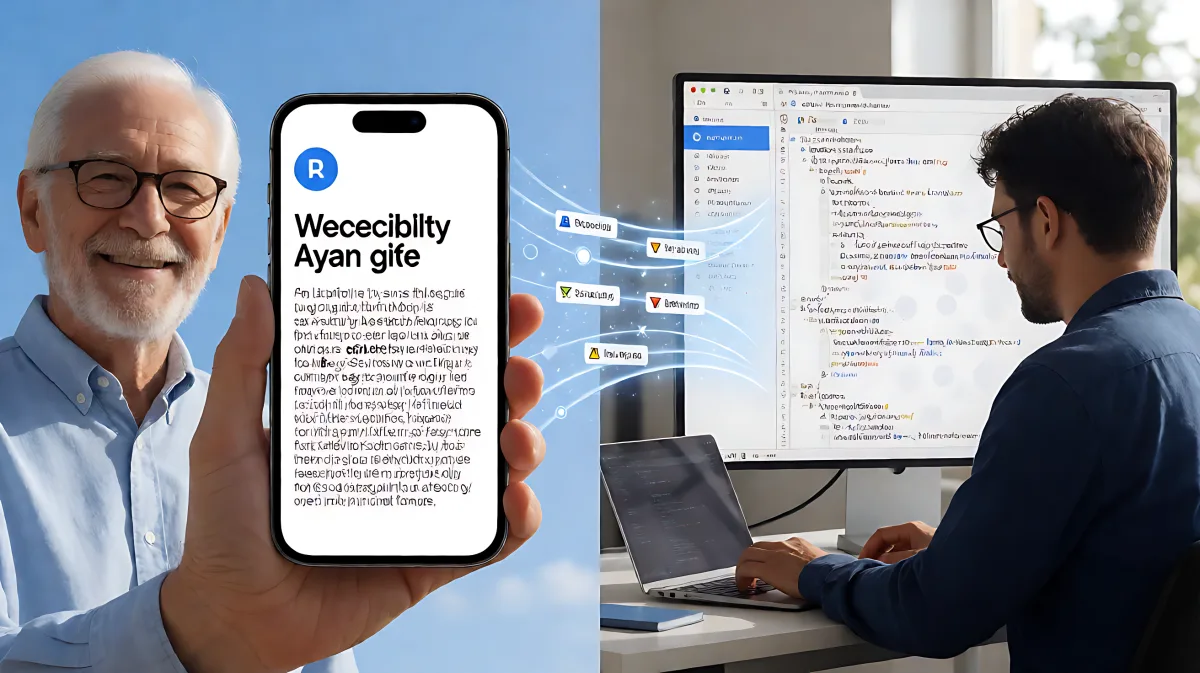
Open source projects often overlook accessibility, particularly for older users. This guide details how to integrate automated tools like axe-core with rigorous manual testing to create a prioritized remediation roadmap that truly serves the needs of seniors.
Effective accessibility auditing for open source software requires combining automated scans with targeted manual testing to identify barriers that affect older users. To make code truly usable for seniors, developers must prioritize semantic HTML, high contrast, and clear error messages. By integrating tools like axe-core into the build pipeline and conducting keyboard-only navigation tests, teams can generate a prioritized remediation list that addresses structural issues before they reach end-users.
Why Standard Scans Are Not Enough for Older Users
Many open source maintainers assume that passing a basic automated scan means the product is accessible. However, automated tools only detect a fraction of potential issues. For a demographic that may be experiencing declining vision, reduced motor control, or cognitive fatigue, the absence of clear feedback loops and complex navigation paths is a major barrier. A raw report with hundreds of violations is not a roadmap; it is noise. The goal of an audit is to transform that noise into a structured, actionable plan that respects the limited attention span and specific needs of older adults.
What Tools Should Be Used for Automated Checks?
Automation provides a fast, repeatable baseline for compliance. While Lighthouse offers a high-level score for page accessibility, more granular tools are essential for component-level validation. The open-source community widely uses axe-core, which is integrated into testing frameworks. For unit tests, jest-axe allows developers to catch regressions at the component level during development. For end-to-end workflows, cypress-axe or Playwright integrations can simulate user journeys. These tools should be configured to run on every pull request. If a PR fails an accessibility check, it should be blocked from merging, enforcing a culture of inclusion from the very first line of code. Additionally, contrast ratio checkers can be integrated into CI/CD pipelines to ensure text meets the minimum 4.5:1 ratio required by WCAG 2.1 AA standards.
How Do Manual Tests Reveal Contextual Barriers?
Automated tools cannot judge usability. A developer must manually test the interface to understand the human experience. This involves a systematic "fast-fail" keyboard test. The tester should navigate the entire application using only the Tab, Shift+Tab, Enter, and Space keys. The focus order must be logical and visually obvious. For older users, an invisible focus outline is a critical failure. Next, screen reader testing is required. Using NVDA on Windows or VoiceOver on Apple devices, testers should verify that all interactive elements have accessible names. A button that only says "icon" is useless; it must say "Submit Form". Finally, cognitive load must be assessed. Are the error messages specific? Does the system allow users to pause or extend timeouts? These nuances are often missed by machines but are vital for seniors who may need more time to process information.
What Should a Manual Testing Script Include?
- Keyboard Traversal: Confirm that every control is reachable and operable without a mouse.
- Screen Reader Verification: Check that landmarks, headings, and form labels are announced correctly.
- Content Clarity: Ensure that language is plain and that technical jargon is minimized.
- Visual Feedback: Verify that state changes (like a button being pressed) are visible to users with low vision.
How Should Findings Be Prioritized for Development Teams?
Once issues are identified, the team must avoid the "todo list paralysis" of hundreds of untracked bugs. A disciplined triage process uses a scoring model based on user impact, frequency of use, and estimated effort.
| Score Range | Priority Level | Recommended Action |
|---|---|---|
| 13–15 | P0 (Critical) | Immediate block; assign to current sprint. These issues prevent core tasks like checkout or login. |
| 9–12 | P1 (High) | Schedule for next 1–2 sprints. These hinder secondary features but do not block the main flow. |
| 5–8 | P2 (Medium) | Backlog grooming. Merge with similar fixes to reduce overhead. |
| 0–4 | P3 (Low) | Record and batch for future cleanup. These are often minor cosmetic issues. |
How Can AI Assist in Accessibility Design?
The integration of AI into the development workflow is reshaping how code is written. New open-source projects, such as the accessibility-linter skill, propose a "design engineer" mindset. Instead of acting as a post-build auditor, these tools intervene during the creative phase of coding. They operate on three tiers. First, they automatically enforce best practices, such as using semantic <button> tags instead of divs and adding aria-label attributes to icon-only buttons. Second, they ask critical architectural questions before code is generated. For example, when building a modal, the AI will ask if focus should be trapped and how the user should be able to close the dialog. Third, they flag intentional deviations from standard accessibility patterns, requiring the developer to confirm a specific trade-off. This approach prevents technical debt by embedding accessibility into the code's DNA rather than patching it later.
What Are the Key Takeaways for Inclusive Development?
Making open source software accessible for seniors is not about adding a single "senior mode." It is about fundamentally improving the interface for everyone. By combining automated gates in the CI/CD pipeline, rigorous manual testing with screen readers and keyboards, and AI-assisted design reviews, teams can eliminate the most common barriers. The result is a product that is not only compliant with WCAG standards but is genuinely usable for the aging population. The audit must be a continuous practice, not a one-time checkbox. When a senior user can complete a task without frustration or confusion, the code has succeeded.
FAQ
What is the minimum contrast ratio required for text?
According to WCAG 2.1 AA standards, normal text should have a contrast ratio of at least 4.5:1. Large text (18pt or 14pt bold) requires a minimum of 3:1. Ensuring these ratios is critical for users with low vision or those using screens in bright light.
Can automated tools replace manual testing?
No. Automated tools like axe-core only detect about 30% to 40% of accessibility issues. They cannot judge usability, logical reading order, or cognitive load. Manual testing with keyboard and screen reader software is essential to catch context-dependent errors.
How do I test keyboard navigation effectively?
Connect your mouse and disable it. Navigate the entire application using only the Tab key to move focus, Shift+Tab to go back, and Enter or Space to activate controls. Verify that the focus indicator is always visible and that the order of elements matches the visual layout.
What is an accessibility linter?
An accessibility linter is a tool that checks code for accessibility best practices during development. Advanced versions integrate with AI coding assistants to ask design questions before code is written, ensuring that structural issues are solved at the design phase rather than in post-launch audits.